If you are interested in being an early access client, reach out to your Customer Success Manager.
| User Role | View | Edit |
|---|---|---|
| Client Admin | Yes | Yes |
| Data Manager | Yes | Yes |
| Viewer | Yes | No |
Bluecore can connect to any SFTP that uses a host, username, and password for authentication in its SFTP integration, including Files.com, Salesforce Marketing Cloud (SFMC) or Snowflake.
This integration lets you export your customer and product attributes using audience or customer exports.
Prerequisites
- An SFTP account.
- Service-level credentials to the SFTP account.
- Your SSH private key, if you want to use SSH key authentication. It must be Base64-encoded and can be entered in the Password field.
- The customer and product attributes that you want to export in the audience or customer export. You can update these at any time.
SSH keys are only supported for customer exports. SSH keys are not supported for audience exports.
Create an SFTP export integration
- Navigate to
 Data Management > Integrations.
 - Click New Integration > Export to secure FTP.
- Complete the Settings, Definitions, Campaign, and Authentication tabs and click Save.
 Data Management > Integrations.
 When creating an audience export SFTP integration, you must fill out the Campaign tab to define the directory, file name, and other file details. When creating a customer export SFTP integration, these settings can be defined and overridden when creating the customer export job.
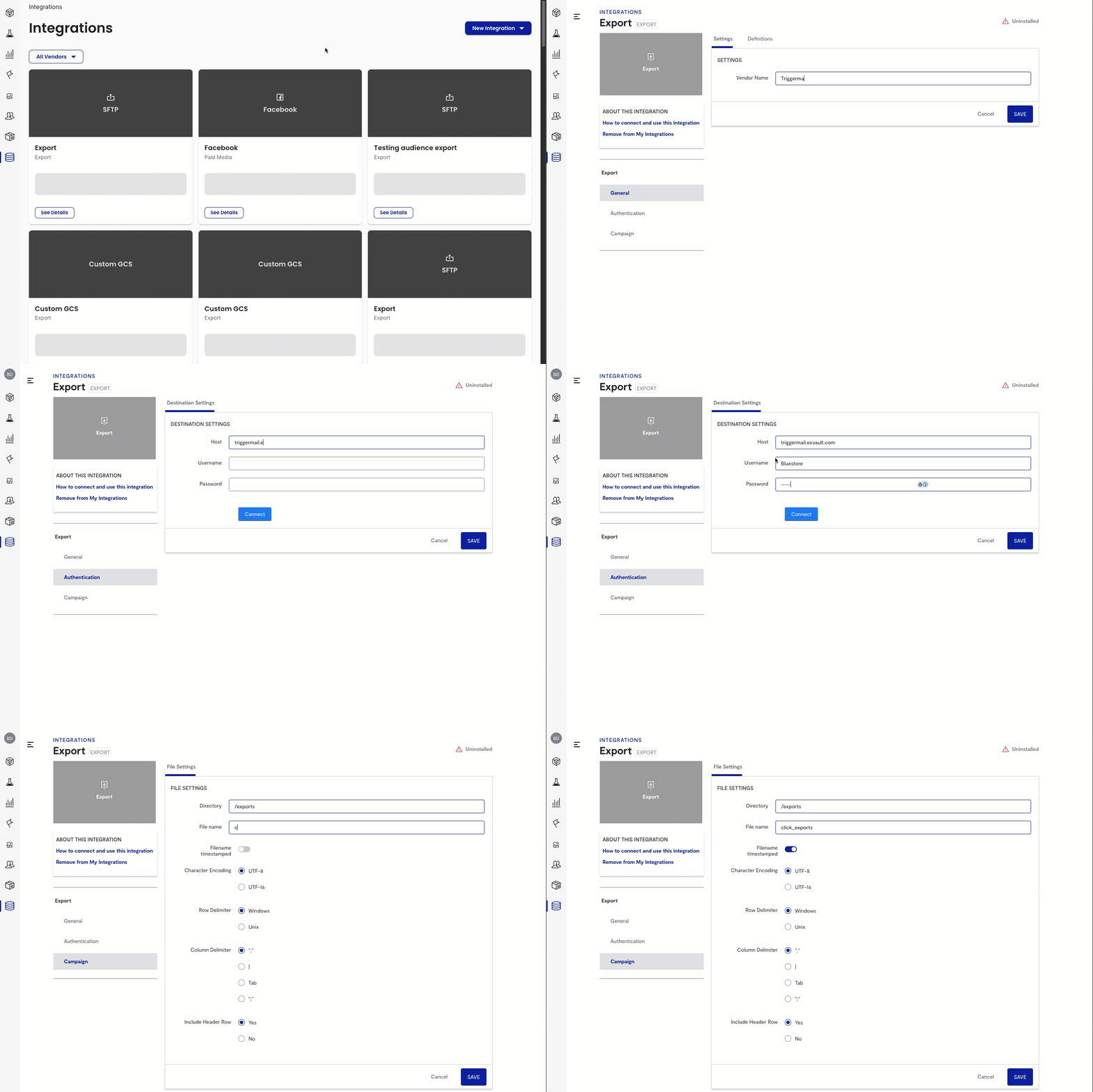
Export to Bluecore’s Files.com instance
To export the file to Bluecore's Files.com instance, enter the directory path where the file should go, including the Namespace name.
Example: Namespace/exports/audience_exports
To export the file to a non-Bluecore hosted file share, enter the directory path.
Example:/exports/audience_exports.